You can customize what you see when you log in to Sharpr, or your system administrator may have already customized your view for you. Changing any of these settings will not change the view for any other users.
Default Home Page:
You can change your default home page view by mousing over the page title at the top and choosing to make that your home page:

Insights Page:
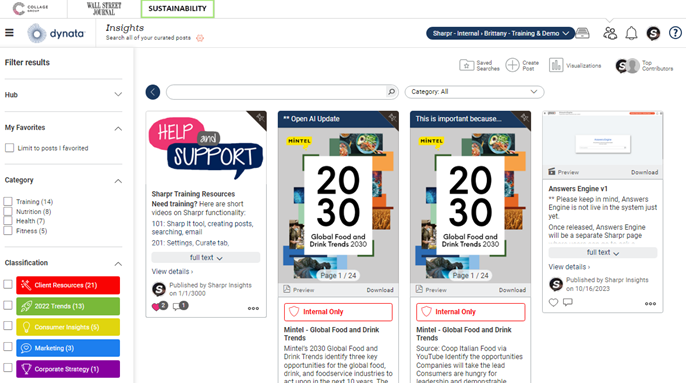
The default home page is typically the insights or posts page, but some organizations might change the default to the Launchpad or Dashboard page. From the Insights page – you can easily search for all of the content and insights within that specific hub.
Here’s an example of the Insights Page:
Insights Page & Post Display Settings:
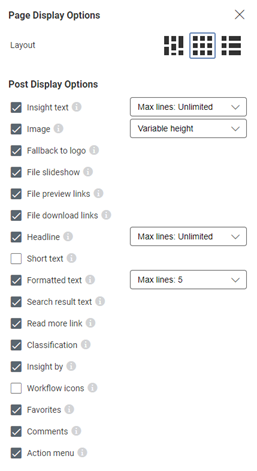
You can edit the posts interface by clicking the gear icon at the top of your page:

After searching you can also change the sorting of your posts.

- Most relevant: Using the Sharpr proprietary algorithm, this will show you the content most relevant to your search.
- Newest: Posts chronologically by post date.
- Recently edited: Post chronologically by their last edited date (not post date).
- Most relevant and recent: Relevancy paired with recency, usually within the last three months. Further down you’ll see relevant but older content.
Launchpad:
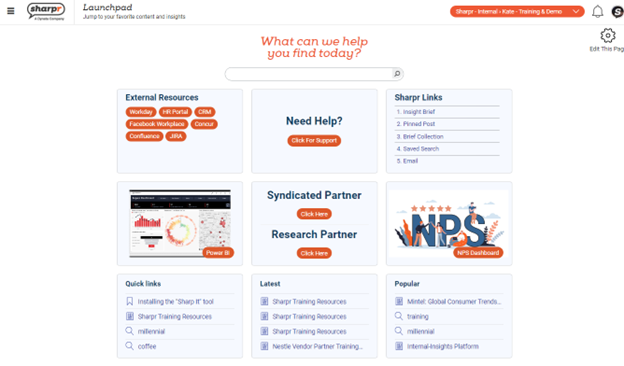
The default home page is typically the insights or posts page, but you may choose to make the launchpad your home page.
Here’s an example Launchpad view:
Dashboard:
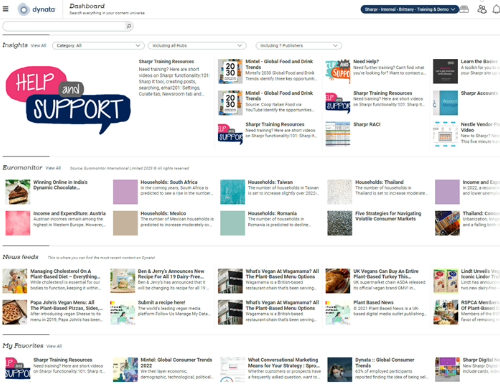
The default home page is typically the insights or posts page, but you may choose to make the dashboard your home page. From this view – you can easily view curated content from ALL of the hubs you have access to – along with any potential integrated content from third party vendors (Mintel, Euromonitor, ect. If applicable), the curated News Feed section, and your Favorites.
Here’s an example Dashboard view: